Approved channels only
You make a list of channels you trust, and only those play. Everything else on YouTube is blocked. This suits younger children best.
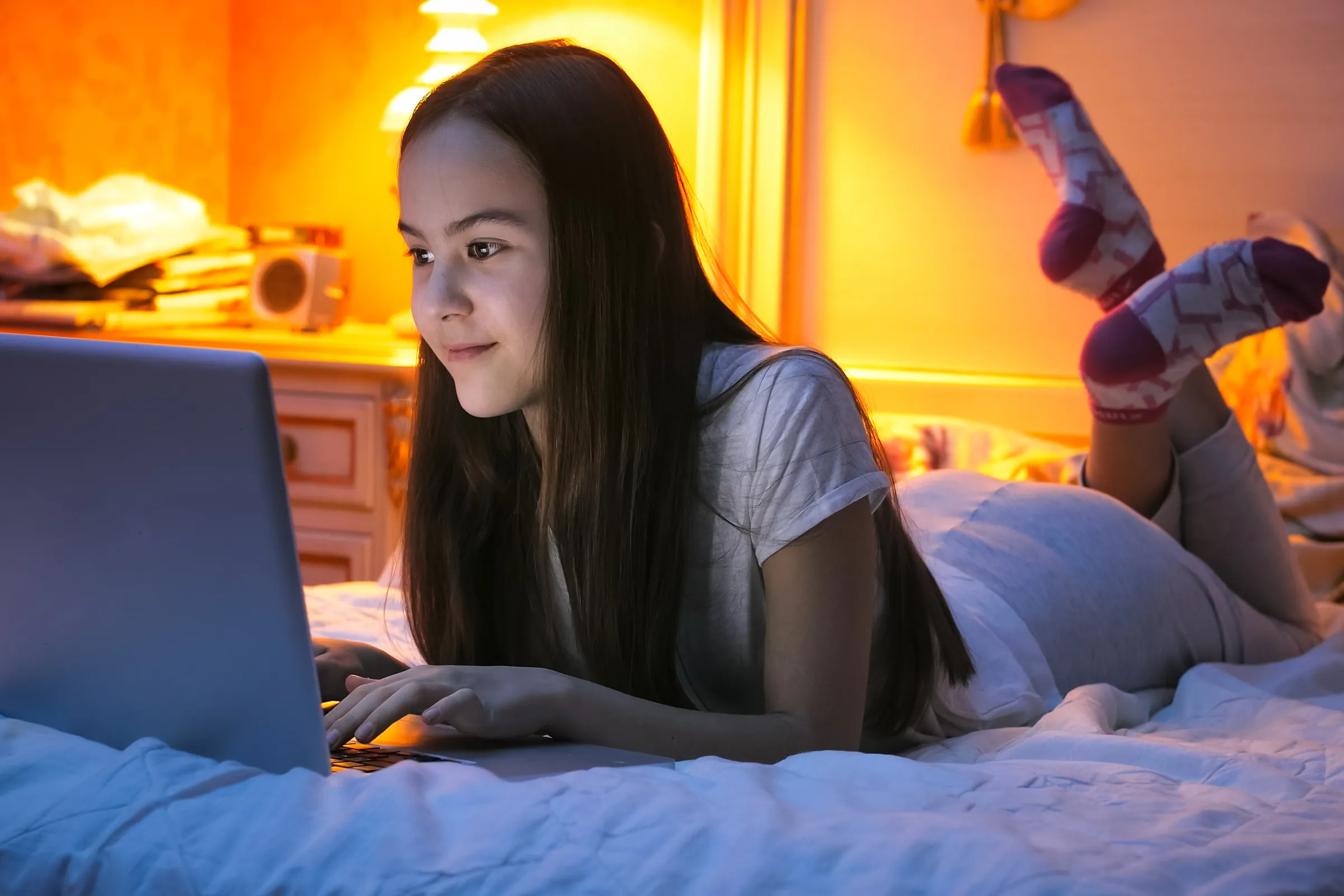
Choose the YouTube channels your child can watch, block the ones you don't want, or block YouTube completely. The rules work in every browser on the PC.
You make a list of channels you trust, and only those play. Everything else on YouTube is blocked. This suits younger children best.
YouTube works as usual, except for the channels on your blocked list. This suits older children who need more freedom.
Add youtube.com to your child's blocked sites, and YouTube doesn't open in any browser. This works on every plan, including Free.
Whichever you choose, YouTube's Restricted Mode stays locked on, so mature videos are hidden too.
With most parental controls, YouTube is either blocked or wide open. An approved list gives you a middle setting. Your child keeps the learning, nature and kids' channels they already like, and you don't have to worry about where the next recommendation leads.
Managed from your account.
YouTube's own settings belong to the Google account your child signs in with. If they sign out, or switch to another account or another browser, those settings no longer apply. SafeScreen runs on the PC itself, so the same rules apply in Chrome, Edge, Firefox and every other browser, signed in or not.
Download SafeScreen on your child's Windows PC and run the installer as Administrator.
In your account, open your child's page and pick approved channels only, or block the channels you choose.
Paste a channel's link or @handle, then select Allow or Block.
The PC picks up your changes within seconds. You don't have to touch your child's computer again.
Yes. Add youtube.com to your child's blocked sites in your account, and YouTube won't open in any browser on the PC. Your own blocked sites are part of every plan, including Free.
Yes. Choose "Approved channels only" and add the channels you trust. Only those channels play, and the rest of YouTube is blocked. Channel lists are part of the Premium plan.
Yes. SafeScreen locks YouTube's Restricted Mode on in every browser, and your child can't turn it off from YouTube's settings. This is free on every plan.
No. SafeScreen filters the whole PC, not one browser, so Chrome, Edge, Firefox and any other browser follow the same rules. Signing out of YouTube or using another Google account doesn't change anything either.
Yes. Each child has their own setting and their own channel lists. A younger child can have approved channels only while an older sibling has a short blocked list.
It's free for one PC and takes a few minutes to set up on Windows 10 or 11. See pricing for the plans with channel lists.
Download for Windows